
Both the desktop and the Cloud software integrate with Smokeball.
Each platform integrates differently and has different functionality, however.
The sections below describe the functionality for each platform.
Cloud:
Here is how you use the Smokeball integration.
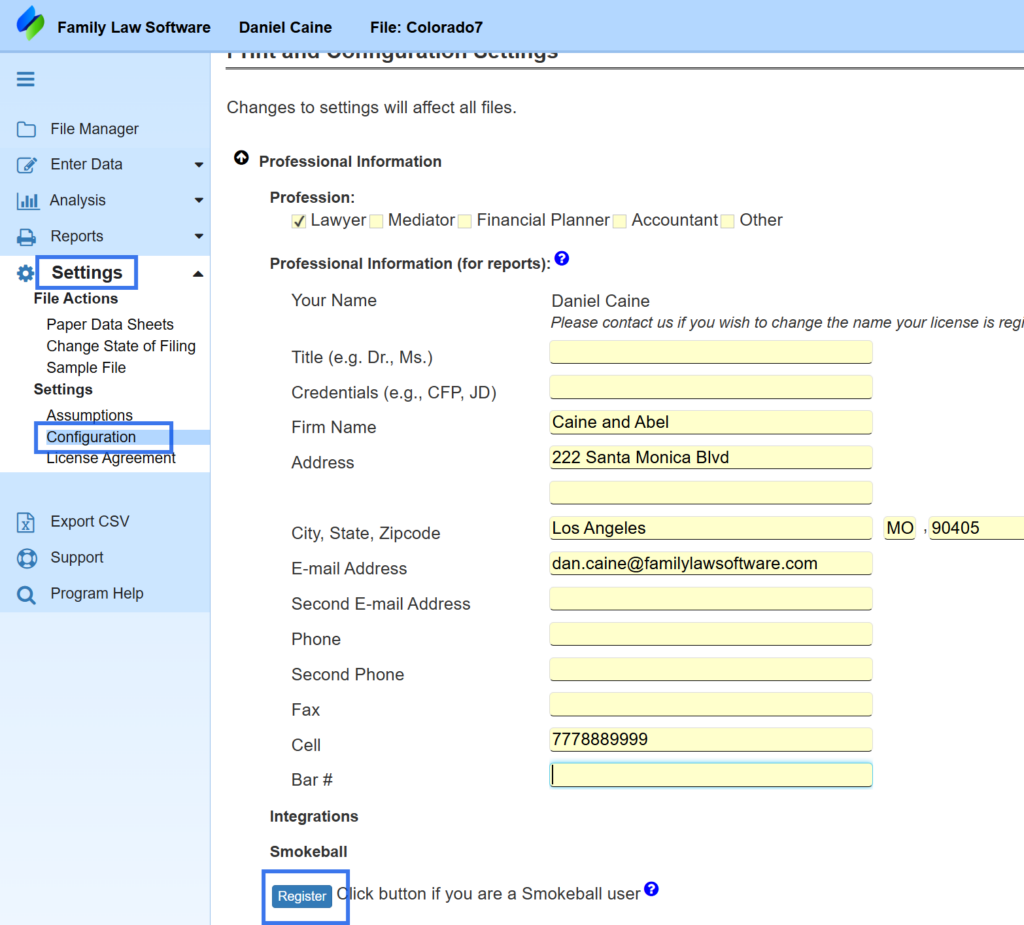
- Let Family Law Software know that you are also a user of Smokeball.
To do that, click Settings > Configuration > Professional Information > Register, as shown below.
On the top right hand corner of your screen you will now see a Smokeball button, as shown below.
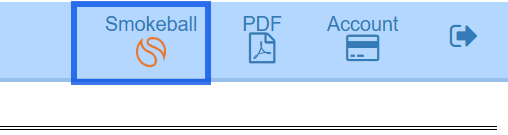
The integration allows you to upload PDFs to your Smokeball folder for the relevant matter.
When you are ready to do that, click the Smokeball button. It will guide you to:
- Log into Smokeball
- Select the matter
- Select the files you would like to upload from your computer to the Smokeball matter folder.
Desktop:
The desktop software allows you to start a Family Law Software, matter from within Smokeball, open it from within Smokeball, and automatically save PDFs to the Smokeball folder.
To start a new Family Law Software file from within Smokeball, open the Smokeball matter and click the Family Law Software icon at the top of the matter menu bar.
That creates a Family Law Software file.
The file is going to be saved in the default Smokeball location for these files — which is actually a buried temp folder.
In that newly created Family Law Software file, you may click Open/Save > Register Client, to send the client the data entry link.
Now, the Family Law Software file will appear in your Smokeball Matter > Documents area, but it is empty.
When you get email notification that the client has begun or completed their data entry, you may start Smokeball and re-open the Family Law Software file from within the Smokeball matter.
Then, download the client data file. Now, the Family Law Software file has changed: it has the client’s data.
If you want to enter the data yourself, you can skip the Register Client and Download steps, but just enter the data yourself (or have another member of your staff do it).
Next, in Family Law Software, click Files & Settings > Open/Save > Save As, so the file with data gets saved. If you do not want it saved in the buried temp folder, change the location to your Family Law Software folder. Also, add the date or a number — like 1,2,3 etc. — to the file name.
Then, click and drag, or import, the Family Law Software file you just saved to the Smokeball matter.
Now there will be multiple Family Law Software files in the Smokeball matter. That is why it is good to use an identifier like the date or sequential numbers when you Save As.
If you want to have Smokeball track all your work in the Family Law Software matter, you may repeat the Save As and Import steps every time you update or change the data in Family Law Software.
If you do not do a Save As, you may get an error message that Family Law Software can not save the file (owing to the temp folder location), so that will remind you.
Now, every time you would like to view the Family Law Software file, you know the most recent version is in my Smokeball matter, and the data will be there.
One advantage of keeping up the Smokeball / Family Law Software integration is that every time you open the Family Law Software file from within Smokeball, even the later saved ones, the autotimer feature kicks in, and the time you spend in Family Law Software gets logged for billing.
Also, any PDFs you save from a Family Law Software file will automatically go into the Smokeball matter. (Actually they are in that buried Temp folder but they will show up in your Smokeball matter.)