
There may be occasions when you want to export reports from Family Law Software to Word or Excel.
For example, you may want to make changes to the document that you can not do within Family Law Software.
This FAQ will explain how to do that.
Exporting to Word
If you have Adobe Acrobat Pro, you can convert the PDF to a Word file using that software.
Alternatively, you can use ChatGPT, Google Gemini, or Claude to convert the document.
Here are the steps:
- Create your PDF in Family Law Software as usual.
- Open your AI tool, such as Google Gemini, ChatGPT, or Claude.
- In your AI tool, click the plus button (illustrated below).
ChatGPT:

Claude:

Google Gemini:

4. Select the option to upload a file, navigate to the PDF that you just created, and select it.
5. In the prompt area type, “Convert this file to a Word document” and then click the button to get started as illustrated below.
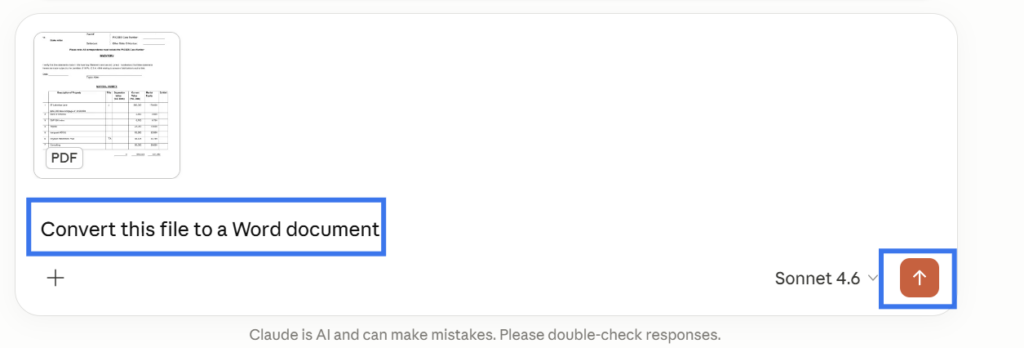
6. The AI will do the conversion and instruct you how to download the document.
7. Open the document in Word and make any changes you wish.
Each of these methods gives slightly different results.
You can use multiple methods and see which gives the results you prefer.
Exporting to Excel (or other spreadsheet)
In the menu bar at the left, one of the options is “Export CSV.”
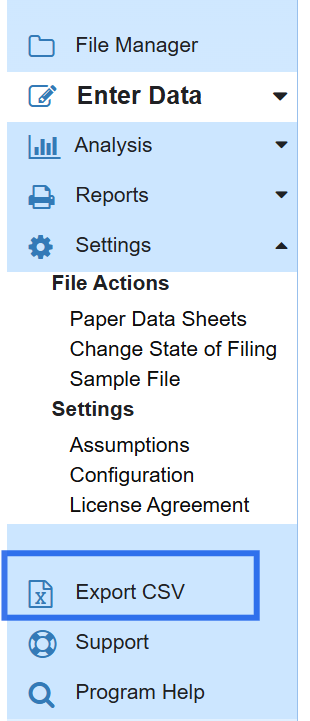
You will be able to open the resulting file in Excel. It will not have formulas, however. So if you want to then make changes, you should first manually set the column totals in Excel to be the sum of the numbers in the column.
You can also upload the .csv file to Google Spreadsheet and work on it there.