
After we announced that we would be ending support for the desktop software, some of you have written to us with questions. Here are the questions we have received most often and our responses:
_________________________________________________________________________
Q: Do I have to upgrade my account?
A: Only if you have the “Full” (“Desktop”) edition.
_________________________________________________________________________
Q: How can I know what edition I have?
A: Go to our Account Upgrade page. Fill in the information and submit. On the next page, you will see your current edition.
_________________________________________________________________________
Q: If I have another edition — Basic, Firm Basic, Cloud or Firm — what do I need to do now?
A: If you are not currently logging into the software through your browser, you need to start doing that. If you have one of these editions, do the following:
- Go to pro.flsgo.com.
- Enter your email and password. (No password? Click “Forgot your password?”)
- When you are registered, click File Manager (top left) > Upload (on the right).
This FAQ gives next steps.
_________________________________________________________________________
Q: What does each edition cost?
A: You can learn about the prices and features of each edition on our pricing page. There is no one-time charge when you upgrade (that is, no $99 charge). If you have the desktop software, there is no charge whatsoever to upgrade to the Cloud Individual edition.
_________________________________________________________________________
Q: How do I upgrade from the Full (desktop) edition at no cost?
A: Click here and choose the Cloud Individual Edition.
If you wish to upgrade to the Cloud Firm Edition, that will cost $10 more per professional per month. With the Cloud Firm edition, you can add unlimited staff (as opposed to professionals) at no additional cost. With Cloud Firm, professionals cost $10 more per month; staff are free.
Also, with the Cloud Firm Edition, members of the firm can view and edit each other’s files.
(If you pay annually, the software will charge you the pro rated amount from today to your renewal date.)
We recommend Cloud Firm if more than one professional in your office is using Family Law Software, or if you have multiple staff using the software. Cloud individual is a good choice if it is just you.
_________________________________________________________________________
Q: Do I have to manually upload my desktop files to the Cloud?
A: Yes. When you migrate to the cloud, decide which files you would like to work on currently and upload those files. Even after we terminate support for the desktop, you will be able to upload files that you created in the desktop software. To upload files:
- Log in to Cloud at https://pro.flsgo.com.
- Click File Manager (top left).
- Click the Upload button (on the right).
_________________________________________________________________________
Q: Can I do a bulk upload of files from my desktop to the Cloud?
A: Yes. Here’s how:
- Log in and click File Manager (top left).
- Click the Upload button (on the right).
- Select multiple files and click OK. (You can search on “how do I select multiple files in Windows Explorer.”)
_________________________________________________________________________
Q: What about my client data entry files?
A: Files that clients have worked on are already in the Cloud. You will see them when you first open the File Manager. If you upload the same file from your desktop, you will get a message that the file is already registered.
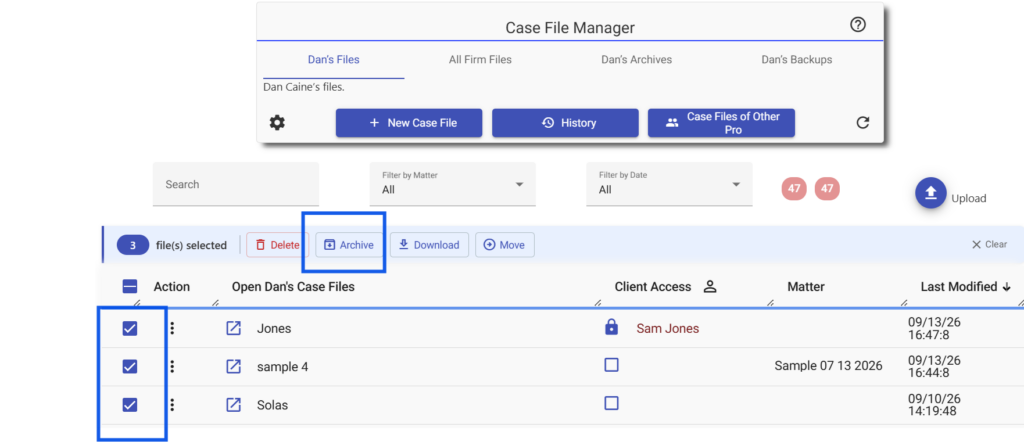
The fastest thing to do is to archive the Cloud files before uploading from the desktop. To do that:
- Click the checkbox in the Action column for each file you wish to Archive.
- Click the Archive button that will appear.
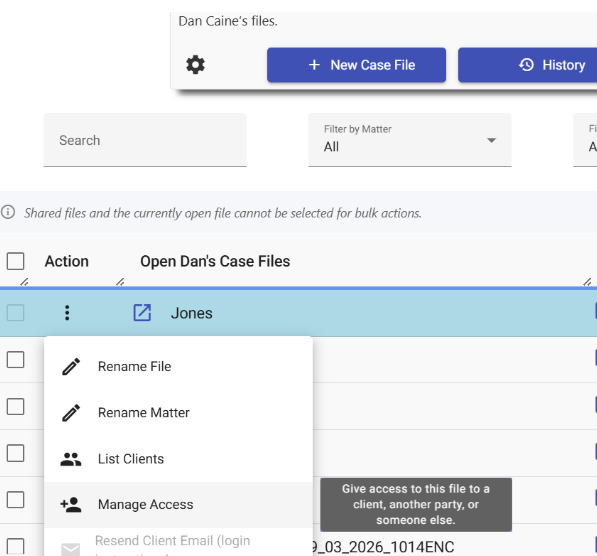
As an alternative, you can un-register the files. To un-register a file, do the following:
1. Click 3-dots under “Action.”
2. Click “Manage access.”
3. Click “Unregister this file.”
4. Click the button to not release the file.
_________________________________________________________________________
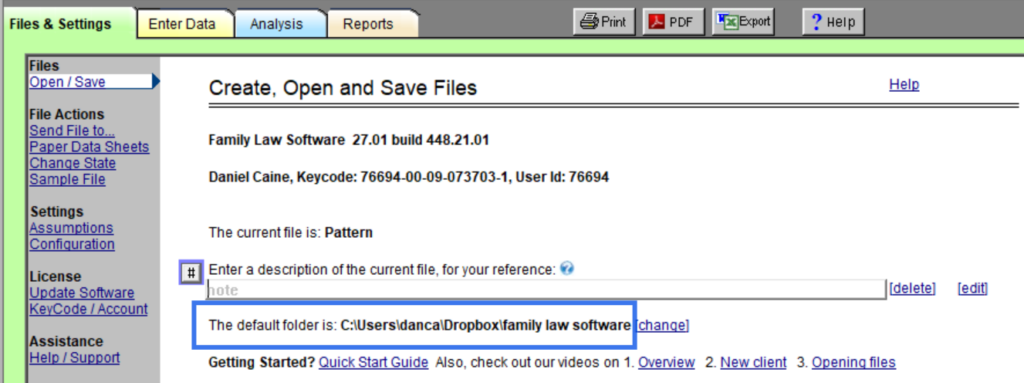
Q: How can I find where my files are located on the desktop, to upload them to the Cloud?
A: It is shown at Files & Settings > Open/Save, as shown below.
_________________________________________________________________________
Q: What if I have different files in different locations?
A: You’ll have to upload from each location separately. One approach is to upload only the files you are currently working on. You can always upload any file you need later.
_________________________________________________________________________
Q: I have Smokeball. What should I know?
A: Please see this FAQ for details.
_________________________________________________________________________
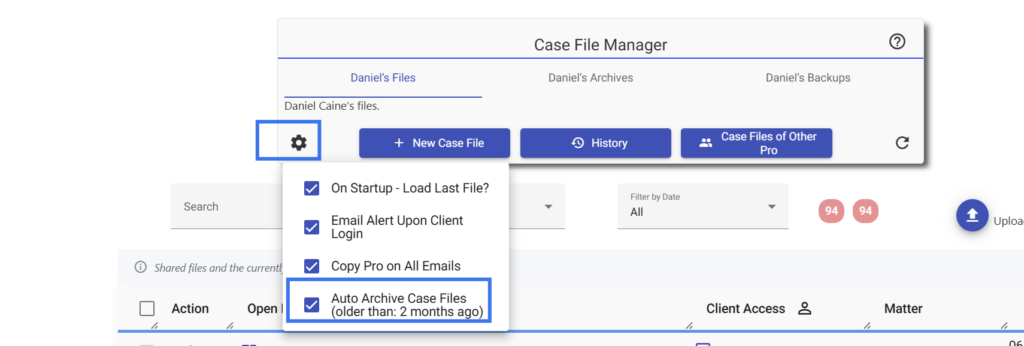
Q: Can I archive files in the Cloud?
A: In the File Manager, there is an option to archive files.
- Log in and click File Manager (top left).
- Click the checkboxes on the left of each file you wish to archive.
- Click the “Archive” button that will appear.
Also, you can set Auto-Archive timing in the File Manager, as shown below:
_________________________________________________________________________
Q: Do I have to upgrade to Cloud today?
A: No, you have until November 30, 2026. (Though you are not able to download updates after September 30.) But the sooner you start, the more time you will have to smoothly transition. And please note that if your current edition is the desktop software, then the upgrade to Cloud Individual is at no additional cost. Click here to upgrade.
_________________________________________________________________________
Q: What if I never upgrade?
A: After September 30, 2026 you will not be able to update your software. After November 30, 2026, the software will no longer work. So you will want to upgrade at some point. Click here to upgrade now.
_________________________________________________________________________
Q: Can I use the Cloud software if I do not have a WiFi or other Internet connection?
A: You need a WiFi or other Internet connection to use the Cloud software.
_________________________________________________________________________
Q: What if I am on an airplane?
A: Most flights today offer WiFi, either free or for a charge. The WiFi is not always accessible, and it is sometimes slow. But in general you can work on Family Law Software cases while in flight.
_________________________________________________________________________
Q: What was that link again to the FAQ with instructions for transitioning to the Cloud?
A: It is here.