
This FAQ will guide you in your transition from using the desktop software to using the Cloud software.
Differences in look and feel.
The main difference in look and feel is that the cloud software has all the tabs along the side, as shown below.
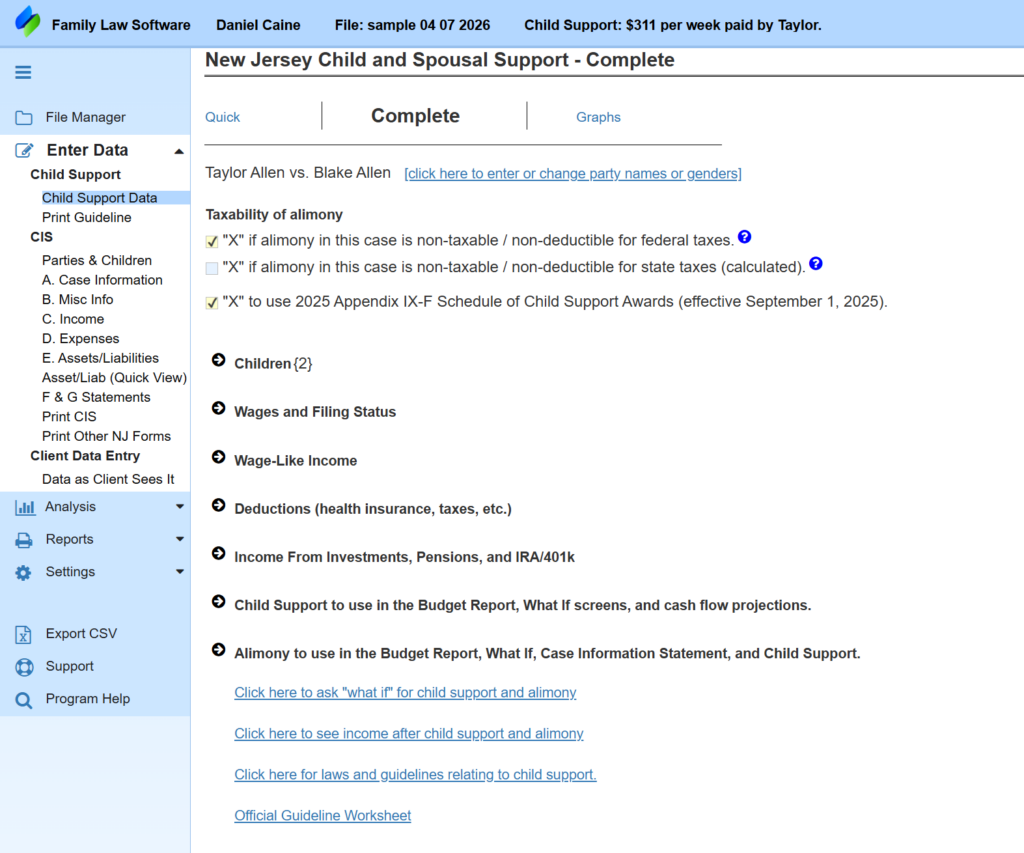
Also, the color scheme is slightly different, as you can see.
The fields on the screens and calculations are exactly identical between the two versions, however.
Logging In
For the cloud version, you’ll log in at pro.flsgo.com using your email address and a password.
You may change the password by clicking “Forgot your password?” on the login screen.
Enter you email address in all lower-case.
Similarly, if you have never logged in or do not know your password, just go to pro.flsgo.com and click “Forgot your password?” And, again, enter you email address in all lower-case.
Creating files
For all file-related activity, click the File Manager button in the upper left hand corner.
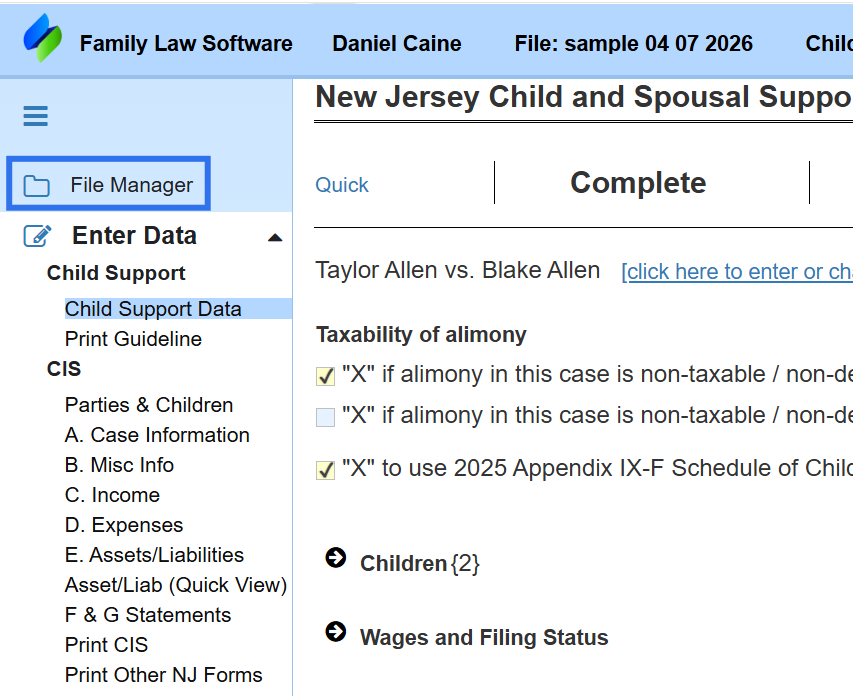
Clicking that button opens the File Manager as shown below.
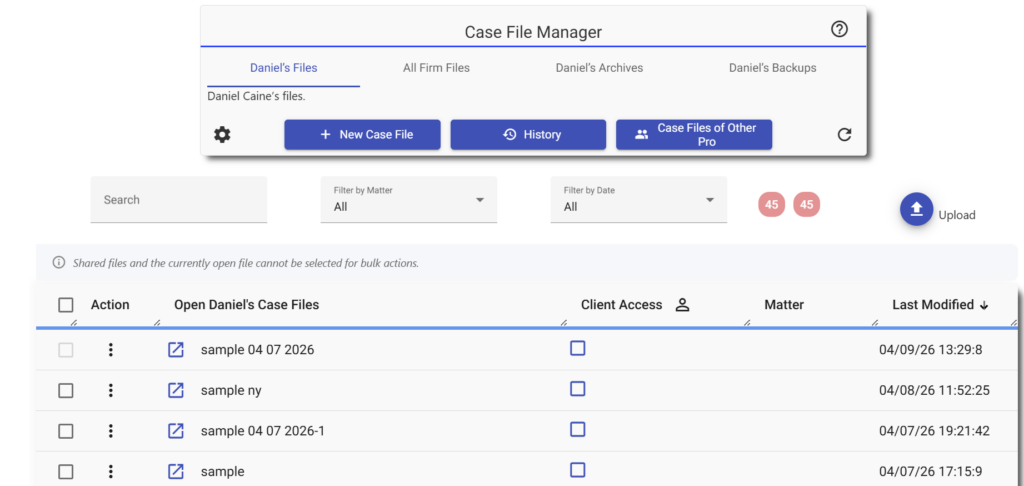
When you first log in, the software will take you directly to the File Manager.
With the Firm Edition, if you are a paralegal or other staff member, you must click the button labeled “Case Files of Other Pro” in order to open a file.
Paralegals can create new files, but only after they have identified which professional they are working for by clicking “Case Files of Other Pro.”
Anyone with the Firm Edition can open the files of another member of the firm by clicking the button labeled “Case Files of Other Pro.”
Folders
There are no folders in the Cloud edition. However, you can quickly find the file you are looking for by clicking in the search box at the top and entering the file name.
If you give the case a name when you start the file, then you can enter the case name in the box labeled Search Filter by Matter.
Client Data Entry
Client Data Entry is smoother with the Cloud Edition than with the Desktop.
To make the client data entry accessible to the client, just click the checkbox under the Client Access column.
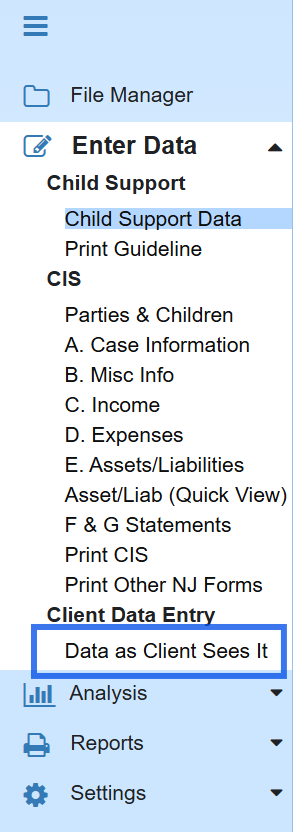
To see what the client sees, open the file and along the left, click the link labeled “Data as Client Sees it,” as shown below.
Uploading Files from the Desktop
You can upload files from the desktop by clicking the upload button near the top on the right.
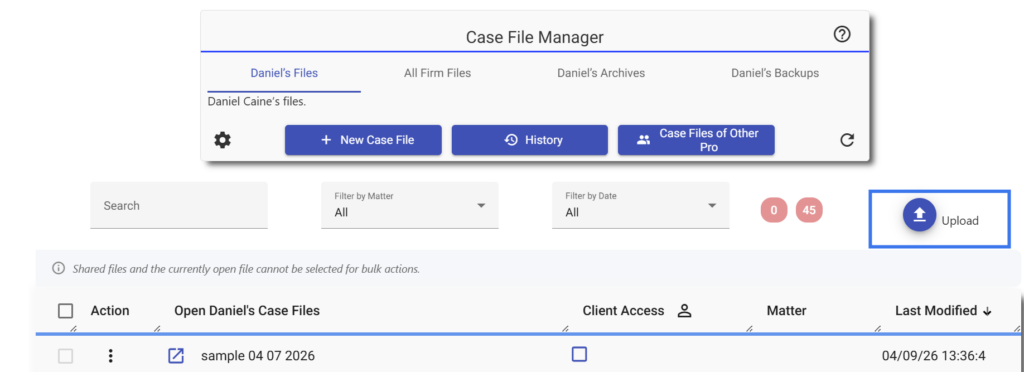
For more information about the File Manager, please see the blog post that we wrote when we released it.
If you have multiple files in a single folder on the desktop, you will be able to upload them all at once.
If your files are all in different folders, you will have to navigate to each one and upload it.
In that case, you may wish to upload files only as you need them.
Emailing files to other Professionals
You can email a file to another professional. Here’s how:
- Open File Manager.
- On the line where the file is located, click the 3-dots button (in the Action column on the left).
- Select Email.
Printing
All printing in the Cloud Edition is done via PDF.
Open the page you want to print and click the PDF icon in the top right corner.
If you would like to edit the printed document, start Microsoft Word and open the PDF file from within Microsoft Word. Word will convert it to a Word document and you can edit it.
Managing Your Account
From within the Cloud Edition, you can make account changes by clicking the Account button in the upper right hand corner.
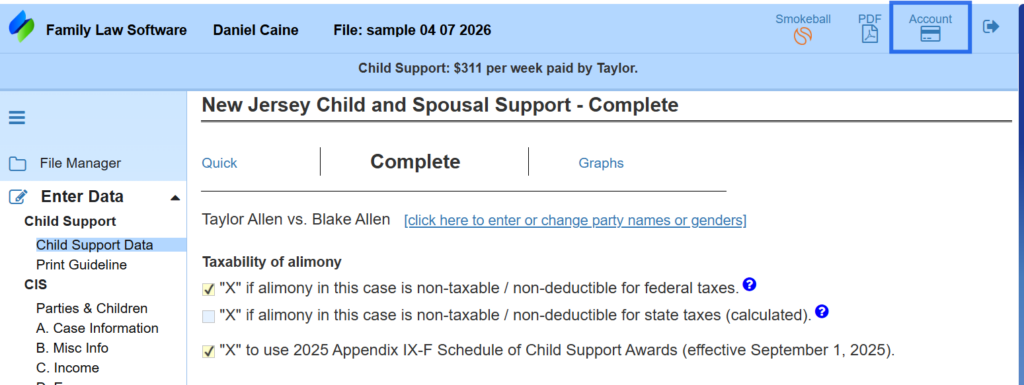
This will take you to our Account Manager, where you can do the following:
- Add or remove users to your account.
- Change credit card information.
- Change contact information.
- Set up 2-factor authentication (2FA).
- View your payments.
- Specify which employees may use the Account Manager.
- Upgrade your edition.
If you need to change your email address, please contact us.
Choosing Between Cloud and Firm Editions
The Cloud Edition is designed for individual practitioners. An attorney or financial planner may share the login with a paralegal or other staff, but with the Cloud Edition, only one person may be logged in at a time.
The same is true of the Basic Edition.
With the Firm Edition, each individual gets their own login, so all attorneys and all paralegals may be logged in at the same time.
The Firm Edition is designed for firms of two or more attorneys and situations where an individual attorney is working with two or more paralegals.
One big advantage of the Firm Edition is that all of the paralegals and staff get licenses to log in at no additional charge.
As indicated above, the Firm Edition also allows an attorney in the firm to open the files of any other attorney.
There is also a Firm Basic product, for people who want only guidelines and affidavits.
To upgrade to a firm edition (either Firm Edition or Firm Basic), follow the steps in Managing Your Account, above.
Uploading Your Logo
If you are a financial planner who has uploaded their logo, you will want to upload your logo again to use it in the Cloud software.
Select Settings > Configuration > Set Report Options > Upload Your Logo, as shown below:
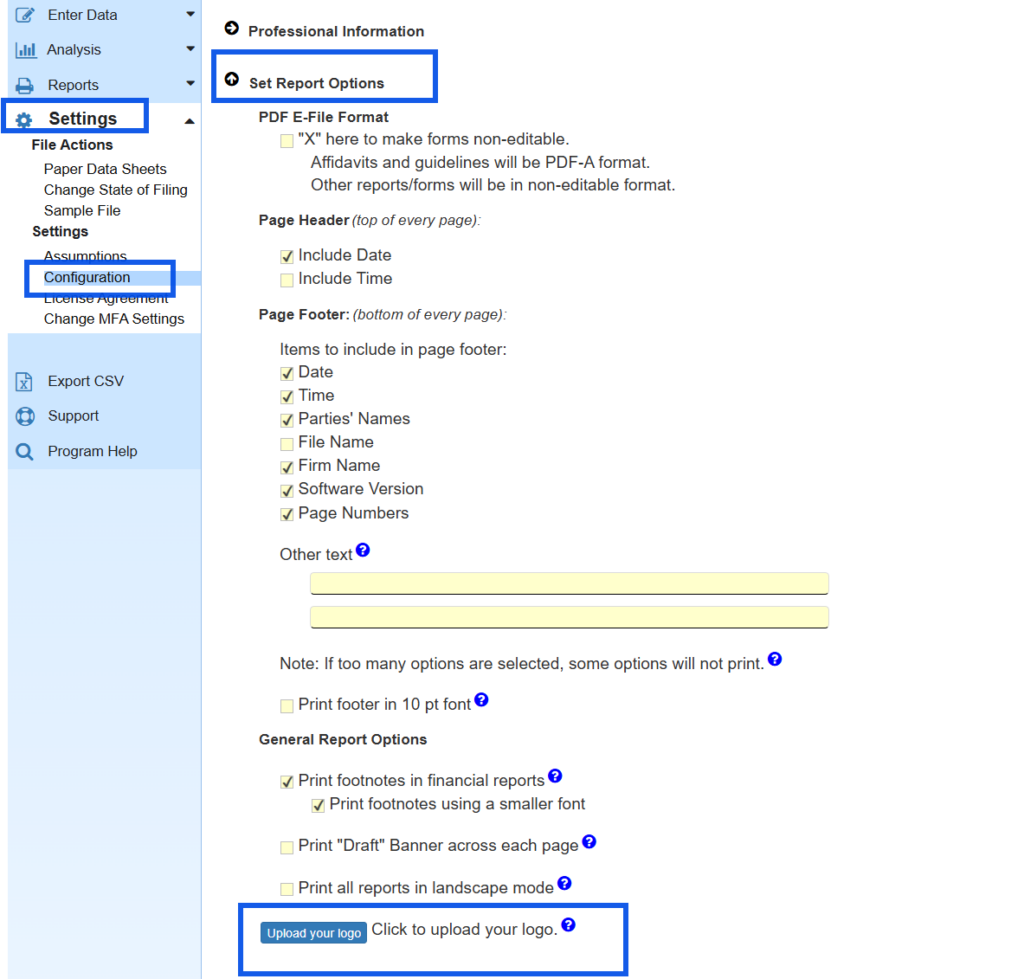
The logo can be in any standard graphics format, including JPEG, PNG, and BMP (but not PDF).
The logo will print from the More Reports screen, if you click checkboxes to print multiple pages at once.
It will not print if you are printing one report at a time.
You may have to experiment with printing to get the size right. Please spend time setting this up before you need it.
If the logo prints too large, upload a smaller image, and vice versa.
More Questions
Click here for answers to questions relating to our phasing out of the desktop software, the transition for Smokeball users, and more.